Importing bookmarks
Bring in what you already have. Folders become collections, duplicates are skipped, and the original save dates come along.
What you can import
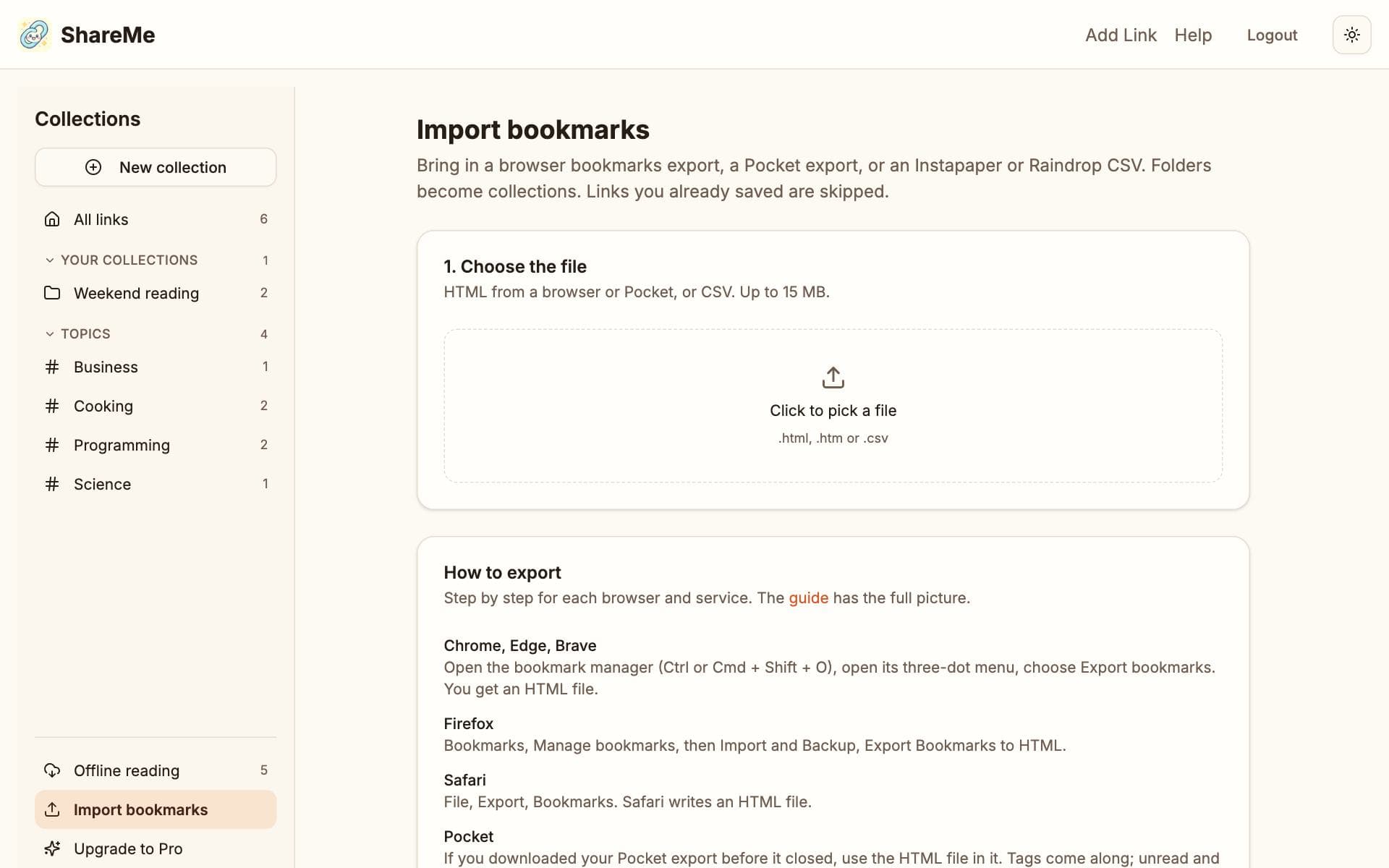
- Chrome, Edge, Brave. Open the bookmark manager (Ctrl or Cmd + Shift + O), open its three-dot menu, choose Export bookmarks. You get an HTML file.
- Firefox. Bookmarks, Manage bookmarks, then Import and Backup, Export Bookmarks to HTML.
- Safari. File, Export, Bookmarks. Safari writes an HTML file.
- Pocket. Unzip the export you downloaded before Pocket closed and upload the CSV inside it; older exports are a single HTML file, and both work. Tags come along, and unread and archived items land in separate collections. Moving from Pocket has the details.
- Instapaper or Raindrop. Export as CSV from their settings. Folders become collections here too.
How an import goes
- Choose the file on Import bookmarks. Files up to 15 MB work.
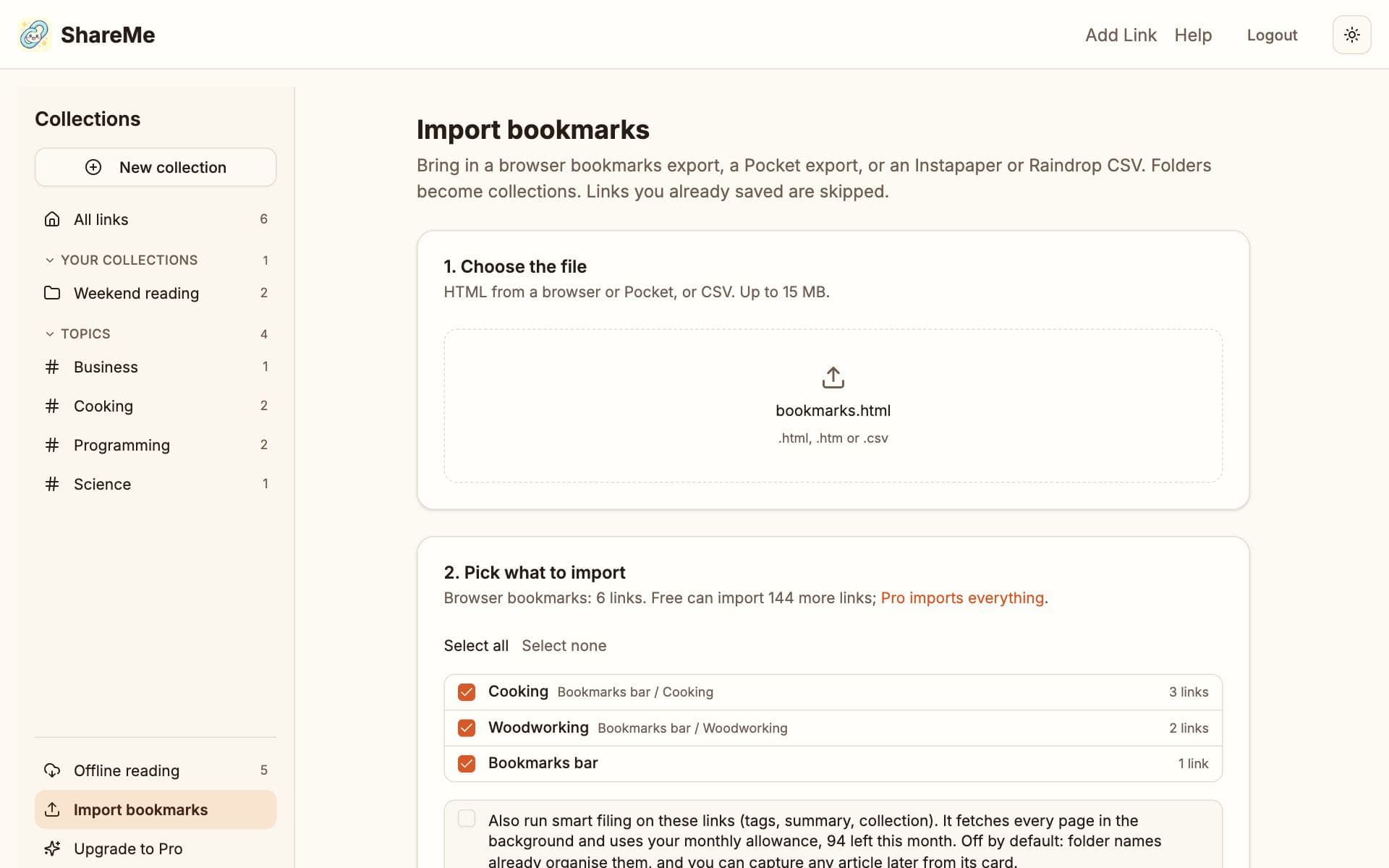
- The preview lists the folders it found with counts, how many of those links you already have, and, on Free, how many you can still add.
- Untick any folder you do not want. Each folder becomes a collection named after it; when two folders share a name, the parent's name is added.
- Import. Links keep their titles and the dates you saved them originally.
The AI and the limits
Imported links skip the AI unless you tick the option, so a big bookmarks file costs nothing. With the option on, they go through the normal pipeline, tags and summaries included, and use the monthly allowance like any other save. Free stops at its 150-link limit; Pro imports a whole file at once.