Collections
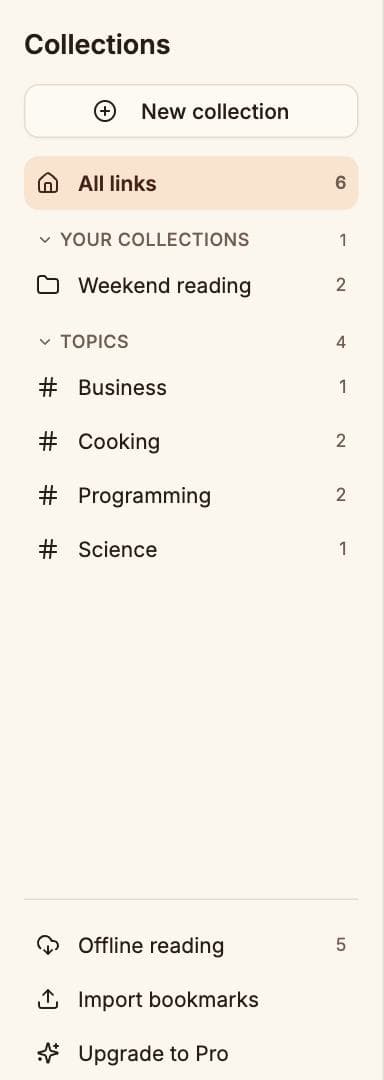
Collections group your links. Some you make; most ShareMe makes for you as you save.
Three kinds
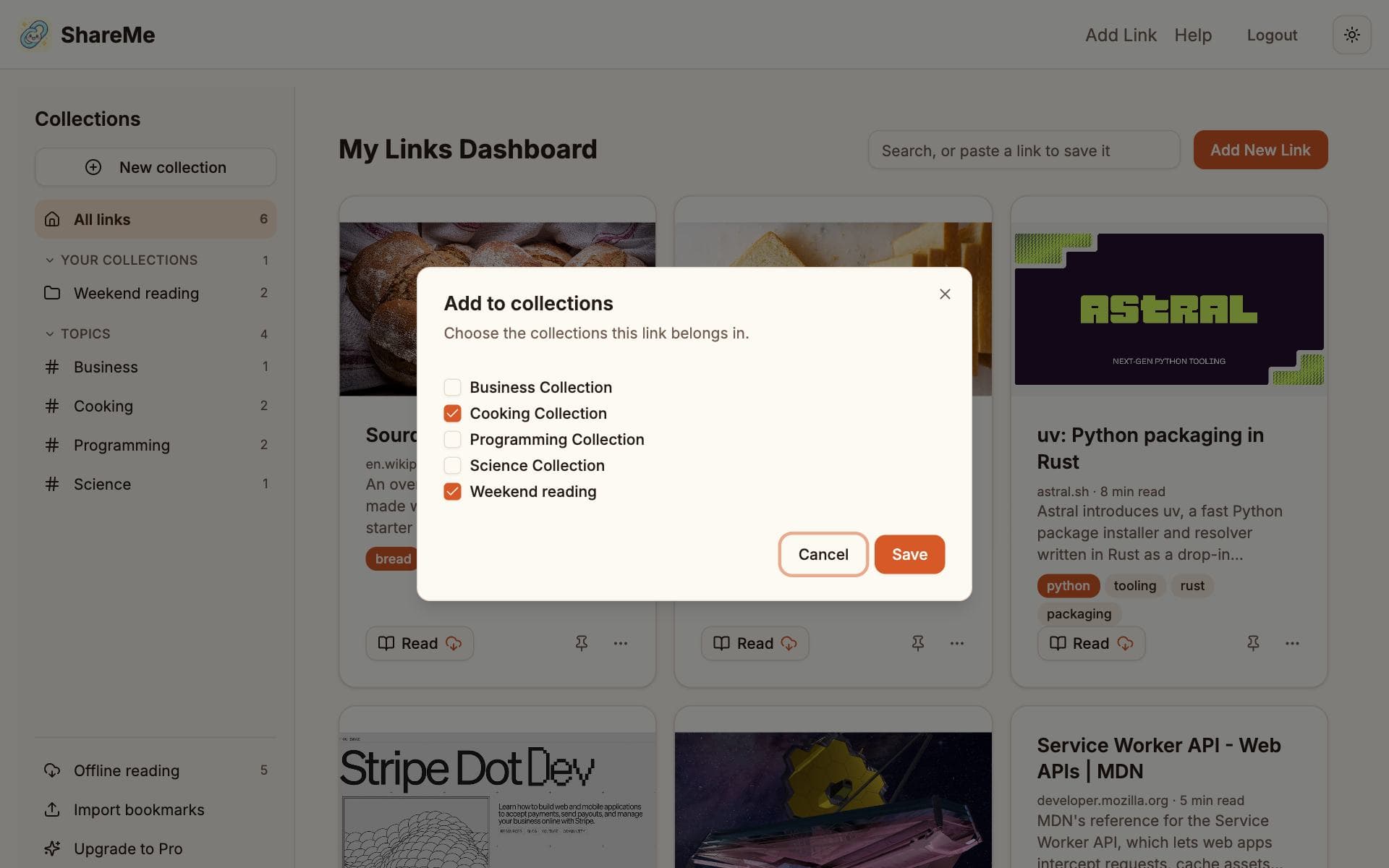
- Your collections are the ones you create with New collection in the sidebar. Put links in them from a card's menu (Add to collection) or when you save a link.
- Topics come from the AI. Each link lands in a category collection such as Programming Collection, and once three of your links carry the same tag, a tag collection such as Python Collection appears with all of them in it.
- Sites gather everything you saved from one website, such as Github Links. A site collection shows up once you have two links from that site.
When ShareMe creates a collection for you, a banner at the top of the dashboard tells you and offers to open it.
The sidebar
The sidebar groups collections the same way, plus Shared with you for collections other people share. Each group folds and stays folded until you open it again; Sites start folded because they are the long tail. A long group shows ten rows and a Show all button, and a Find a collection box appears once you have eight or more collections.
A collection's page
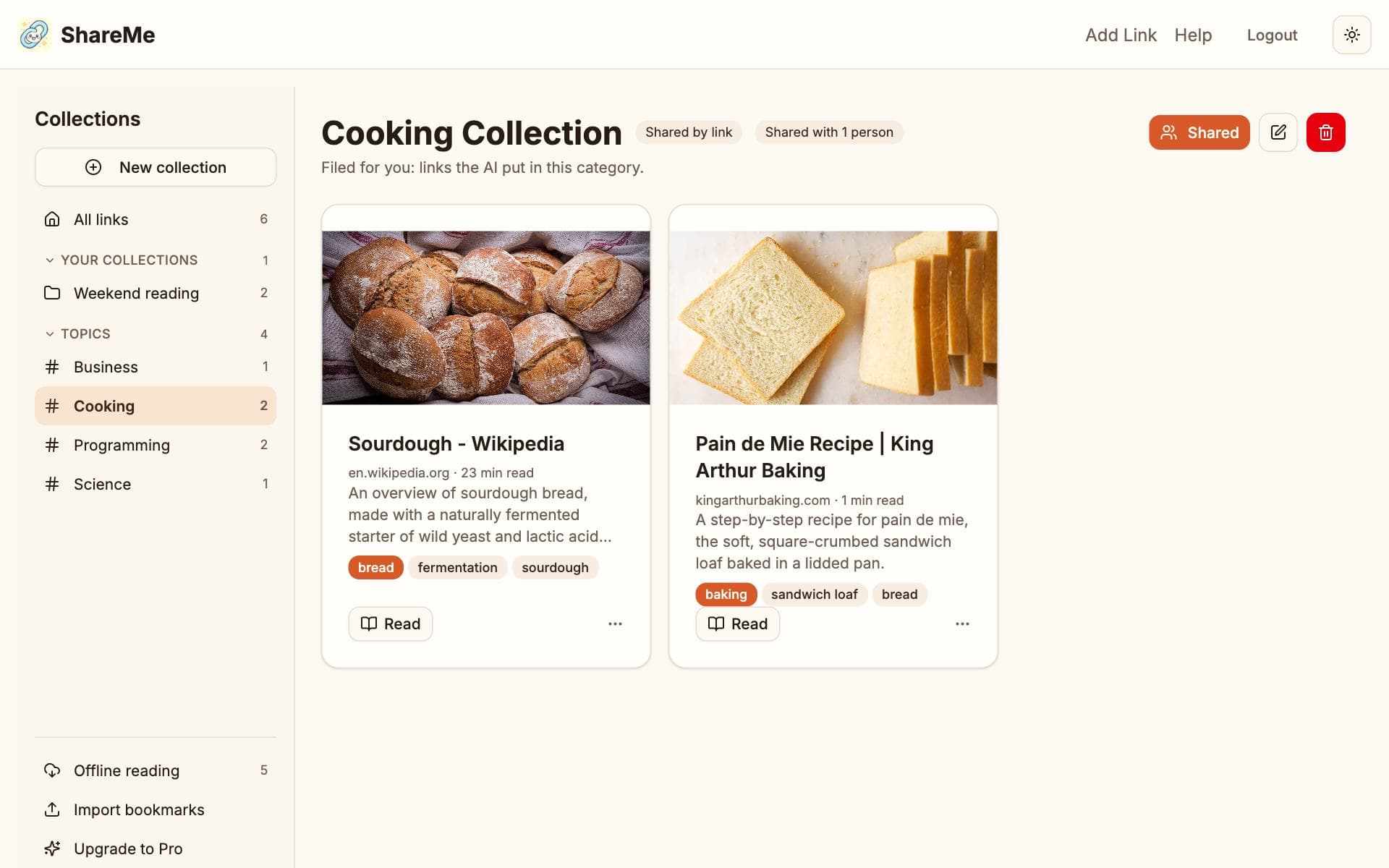
A collection shows its links newest first. Collections ShareMe made say why they exist under their name. Share, Rename and Delete sit at the top right. Deleting a collection removes only the grouping; every link in it stays saved.
Moving links between collections
Add to collection in a card's menu lists every collection with a checkbox. On a collection's own page, the menu also offers Remove from collection. Delete removes the link from your account altogether.